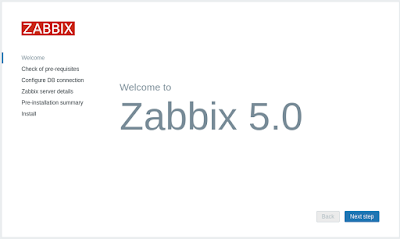
CentOS8 にzabbix 5.0 をインストール
# rpm -Uvh https://repo.zabbix.com/zabbix/5.0/rhel/8/x86_64/zabbix-release-5.0-1.el8.noarch.rpm
# dnf clean all
# dnf install zabbix-server-mysql zabbix-web-mysql zabbix-apache-conf # dnf install zabbix-web-japanese
# dnf install zabbix-agent2
# dnf install zabbix-get
インストール済み:
OpenIPMI-libs-2.0.27-1.el8.x86_64 apr-1.6.3-9.el8.x86_64
apr-util-1.6.1-6.el8.x86_64 apr-util-bdb-1.6.1-6.el8.x86_64
apr-util-openssl-1.6.1-6.el8.x86_64 centos-logos-httpd-80.5-2.el8.noarch
fping-4.2-2.el8.x86_64 httpd-2.4.37-21.module_el8.2.0+494+1df74eae.x86_64
httpd-filesystem-2.4.37-21.module_el8.2.0+494+1df74eae.noarch httpd-tools-2.4.37-21.module_el8.2.0+494+1df74eae.x86_64
mod_http2-1.11.3-3.module_el8.2.0+486+c01050f0.1.x86_64 nginx-filesystem-1:1.14.1-9.module_el8.0.0+184+e34fea82.noarch
php-bcmath-7.2.24-1.module_el8.2.0+313+b04d0a66.x86_64 php-common-7.2.24-1.module_el8.2.0+313+b04d0a66.x86_64
php-fpm-7.2.24-1.module_el8.2.0+313+b04d0a66.x86_64 php-gd-7.2.24-1.module_el8.2.0+313+b04d0a66.x86_64
php-json-7.2.24-1.module_el8.2.0+313+b04d0a66.x86_64 php-ldap-7.2.24-1.module_el8.2.0+313+b04d0a66.x86_64
php-mbstring-7.2.24-1.module_el8.2.0+313+b04d0a66.x86_64 php-mysqlnd-7.2.24-1.module_el8.2.0+313+b04d0a66.x86_64
php-pdo-7.2.24-1.module_el8.2.0+313+b04d0a66.x86_64 php-xml-7.2.24-1.module_el8.2.0+313+b04d0a66.x86_64
unixODBC-2.3.7-1.el8.x86_64 zabbix-agent-5.0.4-1.el8.x86_64
zabbix-apache-conf-5.0.4-1.el8.noarch zabbix-server-mysql-5.0.4-1.el8.x86_64
zabbix-web-5.0.4-1.el8.noarch zabbix-web-deps-5.0.4-1.el8.x86_64
zabbix-web-mysql-5.0.4-1.el8.noarch
完了しました!
# mysql -uroot -pEnter password:
Welcome to the MariaDB monitor. Commands end with ; or \g.
Your MariaDB connection id is 8
Server version: 10.3.17-MariaDB MariaDB Server
Copyright (c) 2000, 2018, Oracle, MariaDB Corporation Ab and others.
Type 'help;' or '\h' for help. Type '\c' to clear the current input statement.
MariaDB [(none)]>
create database zabbix character set utf8 collate utf8_bin;Query OK, 1 row affected (0.000 sec)
MariaDB [(none)]>
create user zabbix@localhost identified by 'password';Query OK, 0 rows affected (0.001 sec)
MariaDB [(none)]>
grant all privileges on zabbix.* to zabbix@localhost;Query OK, 0 rows affected (0.000 sec)
MariaDB [(none)]>
quit;Bye
# systemctl restart zabbix-server zabbix-agent httpd php-fpm
# systemctl enable zabbix-server zabbix-agent httpd php-fpm
# zcat /usr/share/doc/zabbix-server-mysql*/create.sql.gz | mysql -uzabbix -p zabbixEnter password:
# vi /etc/zabbix/zabbix_server.confDBPassword=
password# vi /etc/php-fpm.d/zabbix.conf; php_value[date.timezone] = Europe/Rigal
php_value[date.timezone] =
Asia/Tokyo# vi /etc/zabbix/zabbix_agentd.conf
PidFile=/var/run/zabbix/zabbix_agentd.pid
LogFile=/var/log/zabbix/zabbix_agentd.log
LogFileSize=1
EnableRemoteCommands=1
Server=192.168.100.254
ServerActive=192.168.100.254:10051
Hostname=Zabbix server
HostMetadataItem=system.uname
Include=/etc/zabbix/zabbix_agentd.d/*.conf
# journalctl -xe
# ausearch -c 'sh' --raw | audit2allow -M my-sh
# semodule -X 300 -i my-sh.pp
.
.
.
# usermod -aG wheel zabbix
# vi /etc/sudoers.d/zabbix
zabbix ALL=(root)NOPASSWD:/usr/bin/nmap
Defaults requiretty
Defaults:root !requiretty
Defaults requiretty
Defaults:%wheel !requiretty
# systemctl restart zabbix-server zabbix-agent httpd php-fpm Job for zabbix-server.service failed because the control process exited with error code.
See "systemctl status zabbix-server.service" and "journalctl -xe" for details.
# journalctl -xe-- Unit zabbix-server.service has begun starting up.
9月 29 16:22:11 libre.com zabbix_server[33342]: zabbix_server [33342]: Cannot initialize IPC services: Cannot access path "/var/run/zabbix": [13] Permission denied.
# ausearch -c 'zabbix_server' --raw | audit2allow -M my-zabbixserver
# semodule -X 300 -i my-zabbixserver.pp # ausearch -c 'php-fpm' --raw | audit2allow -M my-phpfpm
# semodule -X 300 -i my-phpfpm.pp
# systemctl restart zabbix-server zabbix-agent httpd php-fpm
# systemctl enable zabbix-server zabbix-agent httpd php-fpm
Created symlink /etc/systemd/system/multi-user.target.wants/zabbix-server.service → /usr/lib/systemd/system/zabbix-server.service.
Created symlink /etc/systemd/system/multi-user.target.wants/zabbix-agent.service → /usr/lib/systemd/system/zabbix-agent.service.
Created symlink /etc/systemd/system/multi-user.target.wants/httpd.service → /usr/lib/systemd/system/httpd.service.
Created symlink /etc/systemd/system/multi-user.target.wants/php-fpm.service → /usr/lib/systemd/system/php-fpm.service.
# dnf install zabbix-web-japanese
# firewall-cmd --add-service=http --zone=public --permanent
# firewall-cmd --add-port=10050/tcp --zone=public --permanent
# firewall-cmd --add-port=10051/tcp --zone=public --permanent
# firewall-cmd --reload
# dnf install zabbix-get
Zabbix エージェントの動作確認
# zabbix_get -s 127.0.0.1 -k agent.version
5.0.4
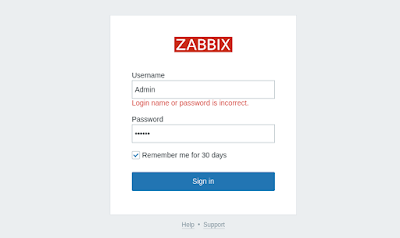
【フロントエンドの設定】
http://localhost/zabbix
user: Admin
password: zabbix
【背景イメージの登録】
管理→一般設定→表示設定→イメージ→タイプ→背景
【スクリプトの登録】 (コマンドの登録)
管理→スクリプト→スクリプトの作成
【ダッシュボードへのお気に入り登録】
「マップ」「スクリプト」の一覧から該当項目を選択して★マークでお気に入入りに登録。
※zabbix3.2では、ダッシュボードの「お気に入り」ウジェットから表示項目を選択登録。
ちょっと悩んだ!!
■zabbix エージェントのインストール(Ver. 5.4)
# dnf install https://repo.zabbix.com/zabbix/5.4/rhel/8/x86_64/zabbix-apache-conf-5.4.7-1.el8.noarch.rpm# dnf install https://repo.zabbix.com/zabbix/5.4/rhel/8/x86_64/zabbix-agent2-5.4.7-1.el8.x86_64.rpm
# vi /etc/zabbix/zabbix_agent2.conf
PidFile=/var/run/zabbix/zabbix_agent2.pid
LogFile=/var/log/zabbix/zabbix_agent2.log
LogFileSize=1
Server=192.168.100.254
ServerActive=192.168.100.254:10051
Hostname=Zabbix Server
HostMetadata=CentOS
HostMetadataItem=system.uname
Include=/etc/zabbix/zabbix_agent2.d/*.conf
AllowKey=system.run[*]
※ AllowKeyを設定した場合は、下記も設定
# visudo
# Allos zabbix to run all commands without password.
zabbix ALL=NOPASSWD: ALL
# firewall-cmd --add-port=10050/tcp --zone=public --permanent
# firewall-cmd --reload
# systemctl start zabbix-agent2
# systemctl enable zabbix-agent2
<確認>
# zabbix_get -s 192.168.100.101 -k agent.version
※ agent2 は、「go」で書き直したもの。
※ SElinux忘れないように!!
スクリプト:なぜかホストに反映されない!!!
■zabbixエージェントでmysql監視
・ローカルユーザ
CREATE USER 'zbx_monitor'@'localhost' IDENTIFIED BY '<password>';
GRANT REPLICATION CLIENT,PROCESS,SHOW DATABASES,SHOW VIEW ON *.* TO 'zbx_monitor'@'localhost';
CREATE USER 'zbx_monitor'@'%' IDENTIFIED BY '<password>';
GRANT REPLICATION CLIENT,PROCESS,SHOW DATABASES,SHOW VIEW ON *.* TO 'zbx_monitor'@'%';
# mkdir /var/lib/zabbix
# chown zabbix:zabbix /var/lib/zabbix
# cd /var/lib/zabbix
# vi /var/lib/zabbix/.my.cnf # agent2 不要?
[client]
user='zbx_monitor'
password='<password>'
※zabbix-agent2の場合
下記マクロ追加
設定→ホスト→dbsv→マクロ
{$MYSQL.DSN} localhost
{$MYSQL.PASSWORD} PASSWORD
{$MYSQL.USER} zbx_monitor
警告がでるので、
設定→ホスト→dbsv→マクロ→継承したマクロとホストマクロ
{$MYSQL.BUFF_UTIL.MIN.WARN} 50→40
# systemctl restart zabbix-agent2
■オラクル監視(zabbix-agent2 oracle監視)
・オラクルクライアントのインストール
https://www.oracle.com/database/technologies/instant-client/linux-x86-64-downloads.html
# dnf localinstall oracle-instantclient19.13-basic-19.13.0.0.0-2.x86_64.rpm
# cat /etc/ld.so.conf.d/oracle-instantclient.conf
/usr/lib/oracle/19.13/client64/lib # 確認
https://git.zabbix.com/projects/ZBX/repos/zabbix/browse/src/go/plugins/oracle/README.md
# sqlp / as sysdba
create pluggable database zabbix admin user zbx_admin identified by <password>;
alter pluggable database zabbix open;
alter pluggable database all save state;
alter session set container=zabbix;
CREATE USER zbx_monitor IDENTIFIED BY <PASSWORD>;
-- Grant access to the zbx_monitor user.
GRANT CONNECT, CREATE SESSION TO zbx_monitor;
GRANT SELECT ON DBA_TABLESPACE_USAGE_METRICS TO zbx_monitor;
GRANT SELECT ON DBA_TABLESPACES TO zbx_monitor;
GRANT SELECT ON DBA_USERS TO zbx_monitor;
GRANT SELECT ON SYS.DBA_DATA_FILES TO zbx_monitor;
GRANT SELECT ON V_$ACTIVE_SESSION_HISTORY TO zbx_monitor;
GRANT SELECT ON V_$ARCHIVE_DEST TO zbx_monitor;
GRANT SELECT ON V_$ASM_DISKGROUP TO zbx_monitor;
GRANT SELECT ON V_$DATABASE TO zbx_monitor;
GRANT SELECT ON V_$DATAFILE TO zbx_monitor;
GRANT SELECT ON V_$INSTANCE TO zbx_monitor;
GRANT SELECT ON V_$LOG TO zbx_monitor;
GRANT SELECT ON V_$OSSTAT TO zbx_monitor;
GRANT SELECT ON V_$PGASTAT TO zbx_monitor;
GRANT SELECT ON V_$PROCESS TO zbx_monitor;
GRANT SELECT ON V_$RECOVERY_FILE_DEST TO zbx_monitor;
GRANT SELECT ON V_$RESTORE_POINT TO zbx_monitor;
GRANT SELECT ON V_$SESSION TO zbx_monitor;
GRANT SELECT ON V_$SGASTAT TO zbx_monitor;
GRANT SELECT ON V_$SYSMETRIC TO zbx_monitor;
GRANT SELECT ON V_$SYSTEM_PARAMETER TO zbx_monitor;
$ zabbix_get -s 192.168.254.203 -k agent.version
$ zabbix_get -s host -k oracle.ping["{$ORACLE.CONNSTRING}","{$ORACLE.USER}","{$ORACLE.PASSWORD}","{$ORACLE.SERVICE}"]
zabbix_get -s 192.168.254.203 -k oracle.ping["tcp://192.168.254.203:1521","zbx_monitor","password","zabbix.world"]
※ Oracle Database 'ORCL': Force logging is deactivated for DB with active Archivelog
→
sql> SELECT log_mode, force_logging FROM v$database;
sql> alter DATABASE FORCE LOGGING;
$ zabbix_get -s 192.168.254.203 -k agent.version
$ zabbix_get -s 192.168.254.203 -k 'oracle.instance.info["tcp://192.168.254.203:1521","zbx_monitor","password","zabbix.world"]'
Connection failed: ORA-00000: DPI-1047: Cannot locate a 64-bit Oracle Client library: "libclntsh.so: cannot open shared object file: Too many open files". See https://oracle.github.io/odpi/doc/installation.html#linux for help.
# zabbix_agent2 -c /etc/zabbix/zabbix_agent2.conf -t 'oracle.instance.info["tcp://192.168.254.203:1521","zbx_monitor","password","zabbix.world"]'