2022年5月10日火曜日

Rocky Linux chrony 設定

# dnf install chrony

NTPD停止
# systemctl stop ntpd
# systemctl disable ntpd

# systemctl start chronyd
# systemctl enable chronyd
# systemctl status chronyd
# chronyc sources
MS Name/IP address         Stratum Poll Reach LastRx Last sample               
===============================================================================
^-   v118-27-19-72.cxxt.stati>        2  10   377   518    +1271us[+1271us] +/-   13ms
^+  i45-32-25-115.vpsv.d.rsp>      3  10   207   878    +33us[  -61us] +/- 4448us
^-  y.ns.gin.ntt.net                            2  10   377   45m   -6994us[-7482us] +/-   91ms
^*  ipv4.ntp3.rbauman.com         2  10   377   874    +507us[ +412us] +/- 4536us

# chronyc -a makestep                    # 手動で同期 

【サーバ設定】
# vi /etc/chrony.conf
allow 192.168.254.0/24
# systemctl restart chronyd
# firewall-cmd --add-service=ntp --permanent
# firewall-cmd --reload

【クライアント設定】
# vi /etc/chrony.conf
#pool 2.pool.ntp.org iburst
pool 192.168.254.253 iburst
pool 192.168.254.254 iburst
# systemctl restart chronyd
# chronyc sources
MS Name/IP address         Stratum Poll Reach LastRx Last sample               
===============================================================================
^* 192.168.254.253               2   6   377    33    +58us[ +130us] +/- 2715us
M (Mode)
ソースのモードを示す。記号ごとにそれぞれ以下の意味がある。
^ はサーバー
= はピア
# はローカル

S (State)
この列は、ソースの状態を示します。
「*」は、chronyd が現在同期しているソースを表す。
「+」は、選択したソースと結合する、受け入れ可能なソースを表す。
「-」は、受け入れ可能なソースで、結合アルゴリズムにより除外されたものを表す。
「?」は、接続が切断されたソース、またはパケットがすべてのテストをパスしないソースを表す。
「x」は、chronyd が falseticker と考える (つまり、その時間が他の大半のソースと一致しない) クロックを表す。
「~」は、時間の変動性が大きすぎるように見えるソースを表します。
「?」条件は、少なくとも 3 つのサンプルが収集されるまで開始時にも表示されます。

2022年5月6日金曜日

Django web Serverの構築(websv)

# dnf install httpd httpd-devel
# dnf install python36 python3-libs python36-devel
# pip3 install --upgrade pip
# mkdir /var/www/wsgi
# chmod 0755 /var/www/wsgi
# mkdir /var/log/python/
# chmod  a+w /var/log/python                           ※ あとで直す。
# vi /etc/httpd/conf/httpd.conf
ServerName websv1:80
# dnf install gcc rpm-build
# pip3 install mod-wsgi
# vi /etc/httpd/conf.modules.d/20-wsgi.conf
LoadModule wsgi_module /usr/local/lib64/python3.6/site-packages/mod_wsgi/server/mod_wsgi-py36.cpython-36m-x86_64-linux-gnu.so
# httpd -M|grep wsgi
proxy_uwsgi_module (shared)
wsgi_module (shared)
#  vi /etc/httpd/conf.d/wsgi.conf
#
# Timeout: The number of seconds before receives and sends time out.
#
Timeout 300
WSGIApplicationGroup %{GLOBAL}
WSGISocketPrefix /var/run/wsgi

WSGIDaemonProcess test user=apache group=apache processes=1 threads=100 maximum-                               requests=10000 \
                             home=/var/www/wsgi/test \
                            python-home=/var/www/wsgi/test/myenv/venv36-d324 \
                           python-path=/var/www/wsgi/test/django:/var/www/wsgi/test/myenv/venv36-d324/lib/python3.6/site-packages \
                           lang=ja_JP.utf8

WSGIScriptAlias /test /var/www/wsgi/test/Config/wsgi.py process-group=test

Alias /static/ /var/www/wsgi/test/static/
Alias /media/ /var/www/wsgi/test/media/
WSGIPassAuthorization on

# for s3
Alias /assets/ /s3/assets/
Alias /media/  /s3/media/
<Directory /s3/assets>
   Require all granted
</Directory>

<Directory /s3/media>
   Require all granted
</Directory>

<Location /test>
WSGIProcessGroup test
</Location>

#   cd  /var/www/wsgi
#    scp -rp root@websv1:/var/www/wsgi/test  .
# chown -R apache:apache test

# firewall-cmd --add-service=http --zone=public --permanent
# firewall-cmd --reload

# dnf remove mariadb* mysql*
# curl -sS https://downloads.mariadb.com/MariaDB/mariadb_repo_setup | sudo bash
# dnf install MariaDB-client 
# dnf install zbar


apache バーチャルホスト リバースプロキシ 設定(仮想ホスト)

#---------------------------------------
# LOCATION リバースプロキシ
#---------------------------------------
# vi /etc/httpd/conf.d/wsgi.conf

<Proxy *>
  Require all granted
  #Order Deny,Allow
  #Deny from all
  #Allow from 192.168.25.146
</Proxy>

ProxyRequests Off
ProxyPreserveHost On

<Location /office>
  proxyPass http://192.168.25.146:80/office/ keepalive=On
  ProxyPassReverse http://192.168.25.146:80/office/
</Location>


#----------------------------------
# VirtualHost   ( 仮想ホスト )
#----------------------------------
インターフェースに複数IPを割り当てる
  VLAN=global_network
  VLAN_IP_1=192.168.1.241/24
  VLAN_IP_1=192.168.1.242/24
  VLAN_IP_1=192.168.1.243/24
  VLAN_IP_1=192.168.1.244/24
  VLAN_GW=192.168.1.1
  nmcli c delete $VLAN
  nmcli c add type ethernet ifname $DEVICE con-name "$VLAN"
  nmcli c mod $VLAN    ipv4.addresses $VLAN_IP_1
  nmcli c mod $VLAN +ipv4.addresses $VLAN_IP_2
  nmcli c mod $VLAN +ipv4.addresses $VLAN_IP_3
  nmcli c mod $VLAN +ipv4.addresses $VLAN_IP_4
  nmcli c mod $VLAN ipv4.method manual
  nmcli c mod $VLAN connection.autoconnect yes
  nmcli c mod $VLAN ipv4.gateway $VLAN_GW
  nmcli c up $VLAN


# dnf install httpd mod_ssl
# vi /etc/httpd/conf.d/httpd-vhost.conf
#-------------------------------------------
#  Link Server
#-------------------------------------------

<VirtualHost *:80>
  ServerName link.mydomain.example

  RewriteEngine on
  RewriteRule (.*)?$ https://%{HTTP_HOST}%{REQUEST_URI} [L,R=301]
</VirtualHost>

<VirtualHost *:443>
ServerName link.mydomain.example

<Proxy *>
Require all granted
</Proxy>

ProxyRequests Off
ProxyPreserveHost On

# LogLevel warn
# TransferLog logs/ssl_access_log

ProxyPass / http://10.0.1.101:80/ keepalive=On
ProxyPassReverse / http://10.0.1.101:80/
RequestHeader set X-Forwarded-Proto "https"

SSLEngine on

# SSLv2、SSLv3, TLS1.0 TLS1.1を無効化する
SSLProtocol All -SSLv2 -SSLv3 -TLSv1 -TLSv1.1
SSLCipherSuite ECDSA+AESGCM
# SSLCipherSuite PROFILE=SYSTEM
SSLHonorCipherOrder Off

SSLCertificateFile /etc/ssl/certs/ssl-cert-link.crt
SSLCertificateKeyFile /etc/ssl/private/ssl-cert-link.key

</VirtualHost>

# cd /etc/ssl
 # ln -s  ../pki/tls/private private

#  apachectl configtest

# firewall-cmd --add-service=https --permanent
# firewall-cmd --reload

※ 下記は、httpdを起動すると勝手につくられる。
/etc/pki/tls/certs/localhost.crt
/etc/pki/tls/private/localhost.key
※ ssl.conf内の<VirtualHost _default_:443>は、マッチしなかった場合のデフォルト

【自己証明書】
# cd ~/Cert
#  openssl version
OpenSSL 1.1.1k  FIPS 25 Mar 2021
# openssl genrsa  -out ssl-cert-link.key  2048
# openssl req -new -key ssl-cert-link.key -out ssl-cert-link.csr
You are about to be asked to enter information that will be incorporated
into your certificate request.
What you are about to enter is what is called a Distinguished Name or a DN.
There are quite a few fields but you can leave some blank
For some fields there will be a default value,
If you enter '.', the field will be left blank.
-----
Country Name (2 letter code) [XX]:JP
State or Province Name (full name) []:Tokyo
Locality Name (eg, city) [Default City]:
Organization Name (eg, company) [Default Company Ltd]:
Organizational Unit Name (eg, section) []:
Common Name (eg, your name or your server's hostname) []:link.mydomain.example
Email Address []:

Please enter the following 'extra' attributes
to be sent with your certificate request
A challenge password []:
An optional company name []:
# openssl x509 -days 3650 -req -signkey ssl-cert-link.key -in ssl-cert-link.csr -out  ssl-cert-link.crt

# cp  ssl-cert-link.crt  /etc/ssl/certs/
# cp ssl-cert-link.key /etc/ssl/private/

※確認方法
# openssl req -noout -text -in ssl-cert-link.csr
# openssl x509 -text -fingerprint -noout -in  ssl-cert-service.crt

URL: https://link.mydomain.example/test
URL: https://service.mydomain.example/test
URL: https://office.mydomain.example/test

※ key : RSA PRIVATE KEY(鍵)
     csr: CERTIFICATE REQUES(証明書の署名リクエスト)
     crt: CERTIFICATE( サーバ証明書)
     pem: BEGIN/END行で挟んだ書式(入れ物)

2022年4月28日木曜日

firewall Nat IPマスカレード設定

【20240119 追記】

nmcli c add type ethernet ifname enp1s0 con-name "ngw_external" ethernet.mtu 1500
nmcli c add type ethernet ifname enp2s0 con-name "ngw_internal" ethernet.mtu 1500

nmcli c mod ngw_external ipv4.addresses 10.0.0.201/24
nmcli c mod ngw_external ipv4.method manual
nmcli c mod ngw_external connection.autoconnect yes

nmcli c mod ngw_internal ipv4.addresses 10.0.0.201/24
nmcli c mod ngw_internal ipv4.method manual
nmcli c mod ngw_internal connection.autoconnect yes

nmcli connection modify ngw_external connection.zone external
nmcli connection modify ngw_internal connection.zone internal

firewall-cmd --zone=external --add-masquerade --permanent

以下不要かも?
# firewall-cmd --direct --add-rule ipv4 nat POSTROUTING 0 -o enp7s0 -j MASQUERADE
# firewall-cmd --direct --add-rule ipv4 filter FORWARD 0 -i enp6s0 -o enp7s0 -j ACCEPT
# firewall-cmd --direct --add-rule ipv4 filter FORWARD 0 -i enp7s0 -o enp6s0 -m state --state RELATED,ESTABLISHED -j ACCEPT

確認。
firewall-cmd --list-all --permanent --zone=external

これも忘れないように。
#  firewall-cmd --add-port=10050/tcp --zone=internal  --permanent
# firewall-cmd --reload
# firewall-cmd --zone=internal --list-all

---------------------前の記載-----------------------------------------
# nmcli c
NAME                        UUID                                                                            TYPE            DEVICE
internet                   d42fca83-c673-4621-b7c8-ce144ed2e37e    ethernet    enp1s0
vlan_dmz                0a7a0428-15de-41c6-8143-ea8ea2684f25   ethernet    enp4s0
vlan_dmz_front   a26299af-62df-45c6-bcfc-1cbd57484981      ethernet    enp3s0
vlan_monitor        38836aef-a8c5-4903-9c65-eca6f6831c43      ethernet    enp2s0

# nmcli d
DEVICE TYPE STATE CONNECTION
enp1s0 ethernet      接続済み internet
enp2s0 ethernet      接続済み vlan_monitor
enp3s0 ethernet      接続済み vlan_dmz_front
enp4s0 ethernet      接続済み vlan_dmz
lo             loopback    管理無し --
          
# firewall-cmd --get-active-zone
public
interfaces: enp1s0 enp2s0 enp3s0 enp4s0

# nmcli connection modify vlan_dmz connection.zone internal
# nmcli connection modify vlan_dmz_front connection.zone external

# firewall-cmd --get-active-zone
external
      interfaces: enp3s0
internal
      interfaces: enp4s0
public
      interfaces: enp1s0 enp2s0

【IPマスカレード】
# /etc/sysctl.conf
net.ipv4.ip_forward=1
# sysctl -p
# cat /proc/sys/net/ipv4/ip_forward
# firewall-cmd --zone=external --add-masquerade --permanent       # マスカレード設定
success
# firewall-cmd --zone=external --query-masquerade                                      # 確認
yes
# firewall-cmd --list-all  --zone=external
external (active)
  target: default
  icmp-block-inversion: no
  interfaces: enp3s0
  sources: 
  services: ssh
  ports: 
  protocols: 
  forward: no
  masquerade: yes
  forward-ports: 
  source-ports: 
  icmp-blocks: 
  rich rules: 

# firewall-cmd --zone=external --add-forward-port=port=18080:proto=tcp:toport=80:toaddr=192.168.31.254  --permanent
# firewall-cmd --zone=external --add-forward-port=port=28080:proto=tcp:toport=80:toaddr=192.168.31.102 --permanent

# firewall-cmd --reload
# firewall-cmd --zone=external --list-all
external (active)
  target: default
  icmp-block-inversion: no
  interfaces: enp3s0
  sources: 
  services: ssh
  ports: 
  protocols: 
  forward: no
  masquerade: yes
  forward-ports: 
port=28080:proto=tcp:toport=80:toaddr=192.168.31.102
port=18080:proto=tcp:toport=80:toaddr=192.168.31.254
  source-ports: 
  icmp-blocks: 
  rich rules: 

# firewall-cmd --list-all-zones                               # 全てのzoneを表示
# firewall-cmd --get-default-zone                       # defaultで設定されるzone
# firewall-cmd --get-services                                 # 設定できるサービス一覧
# firewall-cmd --set-default-zone=block         # default zoneの変更
#  firewall-cmd --direct --get-all-rules

firewall-cmd --get-zones                               ゾーン一覧
firewall-cmd --list-all-zone                              すべてのゾーン
firewall-cmd --get-active-zone                       現在のゾーンとそれに紐付くインターフェイス
firewall-cmd --get-default-zone                     デフォルトゾーン確認

firewall-cmd --set-default-zone=external デフォルトゾーンの変更

firewall-cmd --list-all                                      デフォルトゾーンの設定を表示
firewall-cmd --list-all --zone=external

firewall-cmd --get-services                          定義されているサービス一覧
firewall-cmd --list-service --zone=external  externalゾーンに適用されているサービス
firewall-cmd --add-service=ftp --zone=external   externalゾーンにftpサービスを加える
firewall-cmd --add-service=ftp --zone=external --permanent  恒久的に加える
firewall-cmd --reload  firewalldに設定を再読み込みさせる

firewall-cmd --list-ports --zone=external   externalゾーンで公開されているポート。
firewall-cmd --add-port=10050-10051/tcp --zone=external --permanent 公開ポートの追加
firewall-cmd --reload

# systemctl restart NetworkManager


2022年4月27日水曜日

poundでロードバランサを構築してみた。(ELB)

【rocky linux9 追記 20240119】
# dnf config-manager --set-enabled crb
# dnf install epel-release

※ epel 有効/無効
# dnf config-manager --enable epel
# dnf config-manager --disable epel * default

※ Rocky Linux9は、現在のところPoundをサポートしていなかった。
     Rocky Linux8で実施。


---------------------Rocky linux 8 ---------------------------------
# dnf --enablerepo=epel install Pound

# pound -V
starting...
Version 2.8-patrodyne-20191230
Configuration switches:
Exiting...

# vi /etc/pound.cfg
User "pound"
Group "pound"
Control "/var/lib/pound/pound.cfg"

LogLevel     1
Alive        10
Daemon       1
LogFacility  daemon
Client       300
TimeOut      3600
Threads       256

ListenHTTP
  Address 0.0.0.0
  Port 80
  Err414 "/var/www/Err414"
  Err500 "/var/www/Err500"
  Err501 "/var/www/Err501"
  Err503 "/var/www/Err503"
End
ListenHTTPS
  Address 0.0.0.0
  Port 443
  Cert "/etc/pki/tls/certs/pound.pem"
End
Service
  BackEnd
    Address 192.168.21.101
    Port 80
  End
  BackEnd
    Address 192.168.21.102
    Port 80
  End
  Session
    Type    COOKIE
    ID      "sessionid"
    TTL     120
  End
End

# pound -c -v

# firewall-cmd --add-service=http --zone=public --permanent
# firewall-cmd --add-service=https --zone=public --permanent
# firewall-cmd --reload

# systemctl start pound
# systemctl enable pound

# systemctl status pound
● pound.service - Pound Reverse Proxy And Load-balancer
   Loaded: loaded (/usr/lib/systemd/system/pound.service; enabled; vendor preset: disabled)
   Active: active (running) since Mon 2022-05-30 08:30:51 JST; 58min ago
  Process: 1069 ExecStart=/usr/sbin/pound (code=exited, status=0/SUCCESS)
 Main PID: 1111 (pound)
    Tasks: 132 (limit: 11272)
   Memory: 36.0M
   CGroup: /system.slice/pound.service
           ├─1111 /usr/sbin/pound
           └─1112 /usr/sbin/pound

 5月 30 09:22:28 elb_web pound[1112]: 192.168.20.2 GET /assets/images/menu/enter2.png HTTP/1.1 - HTTP/1.1 200 OK
 5月 30 09:22:28 elb_web pound[1112]: 192.168.20.2 GET /assets/images/menu/acount2-1.png HTTP/1.1 - HTTP/1.1 200 OK
 5月 30 09:22:28 elb_web pound[1112]: 192.168.20.2 GET /assets/images/menu/setup.png HTTP/1.1 - HTTP/1.1 200 OK
 5月 30 09:22:28 elb_web pound[1112]: 192.168.20.2 GET /assets/images/menu/log2.png HTTP/1.1 - HTTP/1.1 200 OK
 5月 30 09:22:28 elb_web pound[1112]: 192.168.20.2 GET /assets/images/menu/exit2.png HTTP/1.1 - HTTP/1.1 200 OK
 5月 30 09:22:28 elb_web pound[1112]: 192.168.20.2 GET /assets/vendor/fonts/inter/Inter-Bold.woff2?v=3.13 HTTP/1.1 - HTTP/1.1 200 OK
 5月 30 09:22:32 elb_web pound[1112]: 192.168.20.2 GET /test/logout/?jump= HTTP/1.1 - HTTP/1.1 200 OK
 5月 30 09:22:34 elb_web pound[1112]: 192.168.20.2 GET /test/top/ HTTP/1.1 - HTTP/1.1 302 Found
 5月 30 09:22:34 elb_web pound[1112]: 192.168.20.2 GET /test/login/?next=/test/top/ HTTP/1.1 - HTTP/1.1 200 OK
 5月 30 09:22:37 elb_web pound[1112]: 192.168.20.2 GET /test/login/?next=/test/top/ HTTP/1.1 - HTTP/1.1 200 OK


※ マニュアル(https://linux.die.net/man/8/pound)

2022年4月20日水曜日

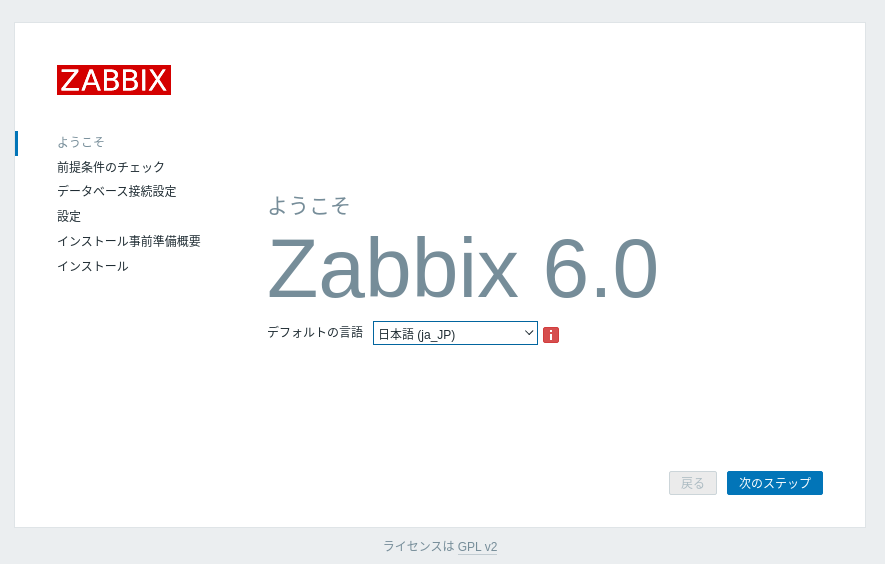
Zabbix6.0LTSのインストール

 Rocky linux8.5 にZabbix6.0インストール

【php 7.4 インストール】
# dnf module list php
# dnf module enable php:7.4 -y
# dnf install php
# php -v

# rpm -Uvh https://repo.zabbix.com/zabbix/6.0/rhel/8/x86_64/zabbix-release-6.0-1.el8.noarch.rpm

# dnf clean all
# dnf install zabbix-server-mysql zabbix-web-mysql zabbix-apache-conf zabbix-sql-scripts zabbix-selinux-policy zabbix-agent2 zabbix-web-japanese

# dnf remove mysql*
# dnf remove Mariadb*
# dnf install MariaDB
# vi  /etc/my.cnf.d/server.cnf 
[mariadb]
character-set-server=utf8
[mariadb-10.7]
character-set-server=utf8

# systemctl start mariadb
# systemctl enable mariadb

# mysql -uroot
mysql> alter user root@localhost identified by 'password';
mysql> quit;

# mysql -uroot -p
password
mysql> create database zabbix character set utf8mb4 collate utf8mb4_bin;
mysql> create user zabbix@localhost identified by 'password';
mysql> grant all privileges on zabbix.* to zabbix@localhost;
mysql> flush privileges;
mysql> quit;

# zcat /usr/share/doc/zabbix-sql-scripts/mysql/server.sql.gz | mysql -uzabbix -p password
※ERROR 1046 (3D000) at line 1: No database selected
→zcatで展開し、先頭に"use zabbix"を追加。

# vi /etc/zabbix/zabbix_server.conf
DBPassword=password

# vi /etc/php-fpm.d/zabbix.conf
php_value[date.timezone] = Asia/Tokyo

# firewall-cmd --add-service=mysql --zone=public --permanent
# firewall-cmd --add-service=http --zone=public --permanent
# firewall-cmd --add-port=10050/tcp --zone=public --permanent
# firewall-cmd --add-port=10051/tcp --zone=public --permanent
# firewall-cmd --reload

# systemctl restart zabbix-server zabbix-agent2 httpd php-fpm
# systemctl enable zabbix-server zabbix-agent2 httpd php-fpm

※ selinux わすれずに!!
# journalctl -xe

【フロントエンドの設定】
http://localhost/zabbix/setup.php
user: Admin
password: zabbix


default user name is Admin,
                password zabbix.


【背景イメージの登録】
管理→ユーザ→ユーザの作成
管理→一般設定→表示設定→イメージ→タイプ→背景
【スクリプトの登録】 (コマンドの登録)
管理→スクリプト→スクリプトの作成
【ダッシュボードへのお気に入り登録】
「マップ」「スクリプト」の一覧から該当項目を選択して★マークでお気に入入りに登録。

【ERROR】 Zabbixサーバーの起動  いいえ
「Zabbixサーバーの起動 はい 」にならない。
※ IPv6でアクセスしていると思われる。
# vi /etc/hosts 
# :::1 localhost
※ GUI PHP 設定変更
#  vi  /etc/zabbix/web/zabbix.conf.php
$ZBX_SERVER                     = '10.0.19.119';

※ 結局、/etc/resolv.confが悪さしていた!!


【 zabbixクライアントの設定 (zabbix-agent2)】

( 20240118 追記 rocky linuix9 )
# dnf install https://repo.zabbix.com/zabbix/6.4/rhel/9/x86_64/zabbix-agent2-6.4.10-release1.el9.x86_64.rpm

# vi /etc/zabbix/zabbix_agent2.d/plugins.d/z99-local.conf <<__EOF__
LogFileSize=1
Server=10.0.19.119
ServerActive=10.0.19.119:10051
Hostname=AMI-ROCKY-20G
#HostMetadata=Rockylinux
HostMetadataItem=system.uname
ControlSocket=/run/zabbix/agent.sock
AllowKey=system.run[*]
__EOF__

# setsebool -P httpd_can_connect_zabbix on
#  setsebool -P zabbix_run_sudo  on
#  semanage boolean -l | grep zabbix
httpd_can_connect_zabbix       (オン   ,   オン)  httpd が can connect zabbix できるようにします
zabbix_can_network             (オン   ,   オン)  zabbix が can network できるようにします
zabbix_run_sudo                (オン   ,   オン)  zabbix が run sudo できるようにします

※ AllowKeyを設定した場合は、下記も設定
# visudo
# Allows zabbix to run all commands without password.
zabbix ALL=NOPASSWD: ALL

# usermod -aG wheel zabbix
# vi /etc/sudoers.d/zabbix <<__EOF__
zabbix ALL=(root)NOPASSWD: /etc/init.d/apache restart
Defaults     requiretty
Defaults:root   !requiretty
Defaults     requiretty
Defaults:%wheel !requiretty
__EOF__

# firewall-cmd --add-port=10050/tcp --zone=public
# firewall-cmd --runtime-to-permanent

# systemctl restart zabbix-agent2


------------------------------ 旧 -----------------------------
# dnf install https://repo.zabbix.com/zabbix/6.0/rhel/8/x86_64/zabbix-agent2-6.0.3-1.el8.x86_64.rpm

#  vi /etc/zabbix/zabbix_agent2.conf
PidFile=/var/run/zabbix/zabbix_agent2.pid
LogFile=/var/log/zabbix/zabbix_agent2.log
LogFileSize=1
Server=192.168.254.254
ServerActive=192.168.254.254:10051
Hostname=zabbix60
HostMetadata=Rockylinux
HostMetadataItem=system.uname
Include=/etc/zabbix/zabbix_agent2.d/*.conf
ControlSocket=/tmp/agent.sock
AllowKey=system.run[*]

※ AllowKeyを設定した場合は、下記も設定
# visudo
# Allows zabbix to run all commands without password.
zabbix ALL=NOPASSWD: ALL
  

# semanage boolean -l | grep zabbix

httpd_can_connect_zabbix       (オフ   ,   オフ)  Allow httpd to can connect zabbix
zabbix_can_network                     (オフ   ,   オフ)  Allow zabbix to can network
zabbix_run_sudo                             (オフ   ,   オフ)  Allow zabbix to run sudo

# setsebool -P httpd_can_connect_zabbix on
#setsebool -P httpd_can_connect_zabbix on
# setsebool -P zabbix_run_sudo  on

# firewall-cmd --add-port=10050/tcp --zone=public --permanent
# firewall-cmd --reload

# systemctl restart zabbix-agent2

# nmap localhost -p 1-20000

# dnf install zabbix-get
Zabbix エージェントの動作確認
# zabbix_get -s 192.168.254.254 -k agent.version
6.0.3
  

#  usermod -aG wheel zabbix

# vi /etc/sudoers.d/zabbix

zabbix ALL=(root)NOPASSWD:/usr/bin/nmap

Defaults                     requiretty

Defaults:root         !requiretty

Defaults                     requiretty

Defaults:%wheel  !requiretty


2022年4月12日火曜日

AlmaLinux or Rocky Linux へのマイグレーション

TO AlmaLinux
https://github.com/AlmaLinux/almalinux-deploy
# curl -O https://raw.githubusercontent.com/AlmaLinux/almalinux-deploy/master/almalinux-deploy.sh
# bash ./almalinux-deploy.sh
# dnf -y distro-sync

TO Rocky Linux
https://docs.rockylinux.org/guides/migrate2rocky/
# curl https://raw.githubusercontent.com/rocky-linux/rocky-tools/main/migrate2rocky/migrate2rocky.sh -o migrate2rocky.sh
# bash ./migrate2rocky.sh -r
# dnf -y distro-sync


# export HTTP_PROXY=http://192.168.100.254:3128
# export HTTPS_PROXY=http://192.168.100.254:3128

Rocky Linux9.8 Docker インストール

# cat /etc/redhat-release Rocky Linux release 9.8 (Blue Onyx) # dnf remove docker docker-client  docker-client-latest  docker-common  docker...